SaaS Deployment Overview
Logging In
Please login via the ActiveAI Security Platform at https://activeai.darktrace.com/.
Select the Forensic Acquisition & Investigation tile to login:
Adding users via ActiveAI Security Platform
Users can be added to your platform by going to: Admin > User Management.
Roles for users can be assigned under Admin > SSO Configuration.
Adding Cloud Accounts
Azure and GCP
Connecting Azure and GCP resources to Forensic Acquisition & Investigation follows the same process as non-SaaS deployments.
Please see:
AWS
AWS Organizations
For organizations with many AWS accounts or accounts which regularly change, AWS organzations can be leveraged to give Forensic Acquisition & Investigation access to them all at once.
Prerequisites
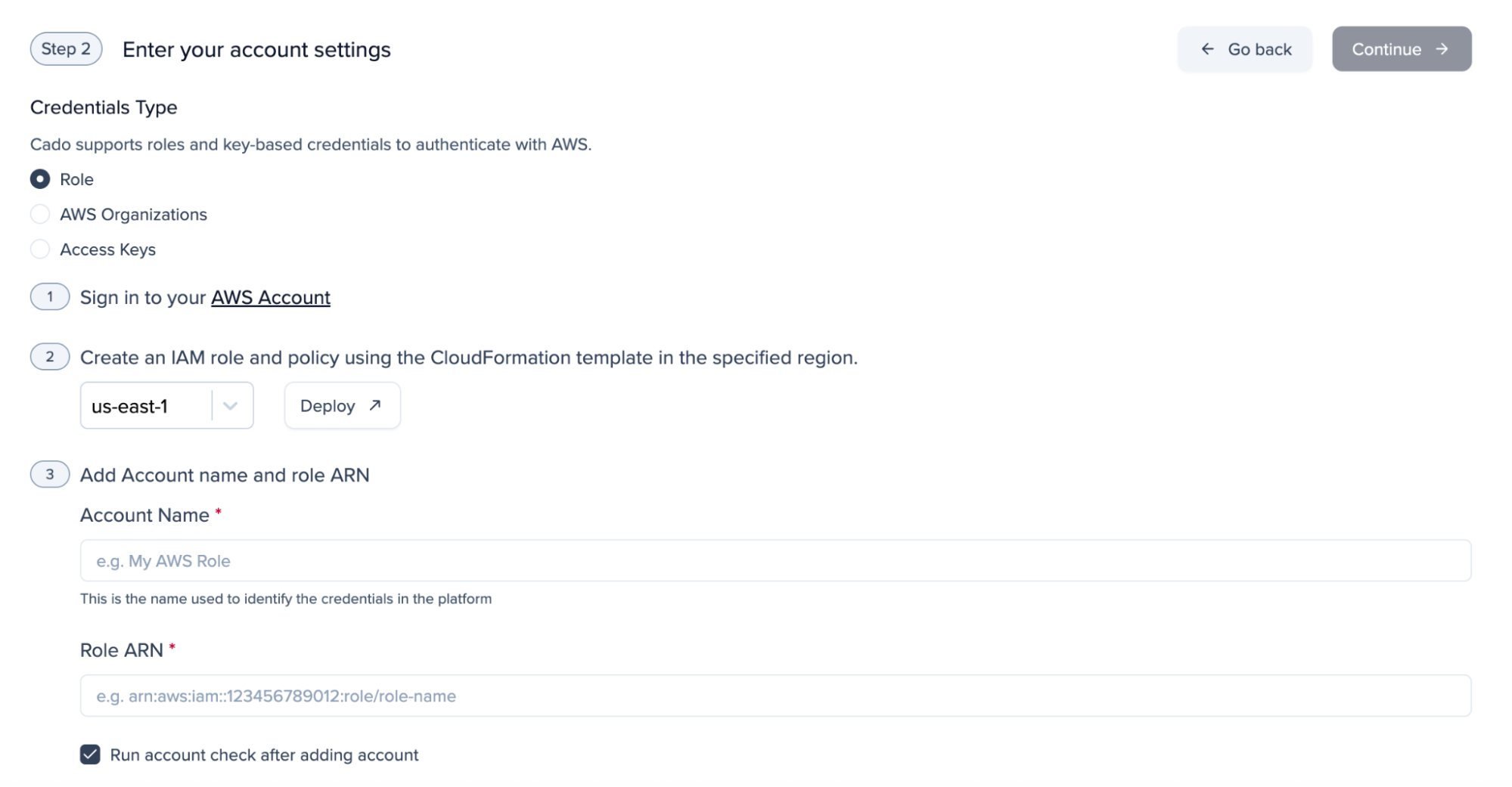
Before starting, you will need your Forensic Acquisition & Investigation external customer ID and the associated AWS ARN of the role used by Forensic Acquisition & Investigation to authenticate with your environment. These can be found in Forensic Acquisition & Investigation by going to Settings > Accounts > Create Account > AWS > Leave all options as default and click 'Deploy' which will open a CloudFormation stack setup in AWS.
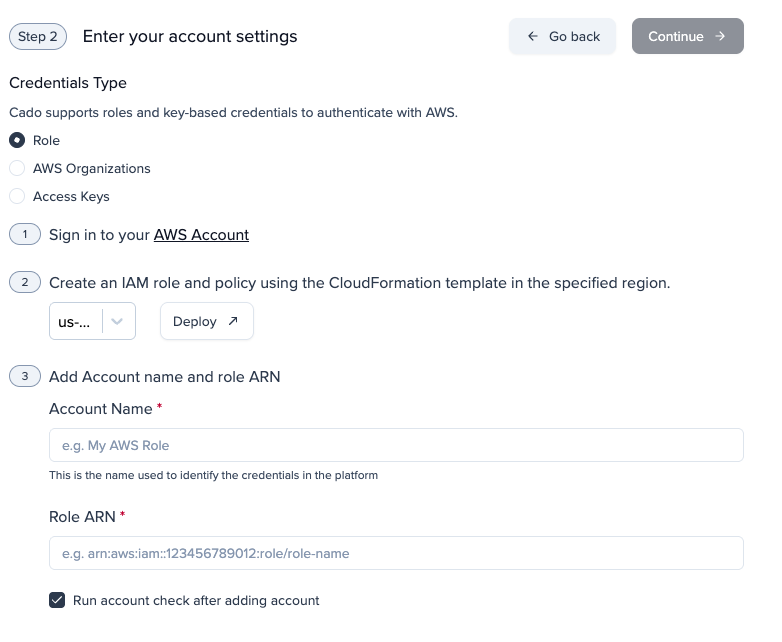
The parameters section will be pre-populated with 'ExternalID' and 'ProxyRoleARN'. Once you've taken note of these the CloudFormation stack can be closed.

IAM roles
If you are deploying Forensic Acquisition & Investigation via the Darktrace /CLOUD wizard, this stage will be done automatically. Please continue to add accounts
In the root account for the AWS organization, create an IAM role which has permission to list all accounts in the organization and list all tags for resources.
{
  "Version": "2012-10-17",
  "Statement": [
    {
      "Sid": "ListAccounts",
      "Effect": "Allow",
      "Action": [
        "organizations:ListAccounts",
        "organizations:ListTagsForResource"
      ],
      "Resource": "*"
    }
  ]
}
Once the above role is created in the AWS organization root account, modify its trust policy so that it can be assumed by Forensic Acquisition & Investigation. Use the example below, substituting in your own 'ExternalID' and 'ProxyRoleARN':
{
    "Version": "2012-10-17",
    "Statement": [
        {
            "Effect": "Allow",
            "Principal": {
                "AWS": "<FAI_SAAS_ROLE_ARN>"
            },
            "Action": "sts:AssumeRole",
            "Condition": {
                "StringEquals": {
                    "sts:ExternalId": "<EXTERNAL_CUSTOMER_ID>"
                }
            }
        }
    ]
}
From the AWS organization root account, deploy the acquisition role to your AWS accounts. When deploying the Stack you will be prompted for the ExternalID and the ProxyRoleARN.
The acquisition roles created in each account must all have the same name
Add accounts to Forensic Acquisition & Investigation
Once the acquisition role is deployed to your accounts, in Forensics Acquisition & Investigation go to:
- Settings
- Accounts
- Create Account
- AWS
- Select 'AWS Organizations' for the credential type
- Enter the ARN of the role you created in the AWS root account and the name of the role deployed to all accounts
- Continue
Now all your AWS accounts will be accessible by Forensic Acquisition & Investigation
A healthcheck for the role in the root account may fail. This is expected and can be ignored.
Stacksets & CloudFormation
AWS accounts can be added by following the process at Settings > Accounts > AWS to deploy a Cloudformation template with the required access: